![[REDACTED] home](/images/logo-5cf3afd6.svg) 100% Free · No File Uploads
100% Free · No File Uploads
[REDACTED] Camera
A virtual camera for Mac that blurs faces in real time. Show your face on a video call and hide the people behind you. Works with Zoom, Google Meet, Teams, FaceTime and any other video app.
 Download for Mac

Click a face to show or hide it
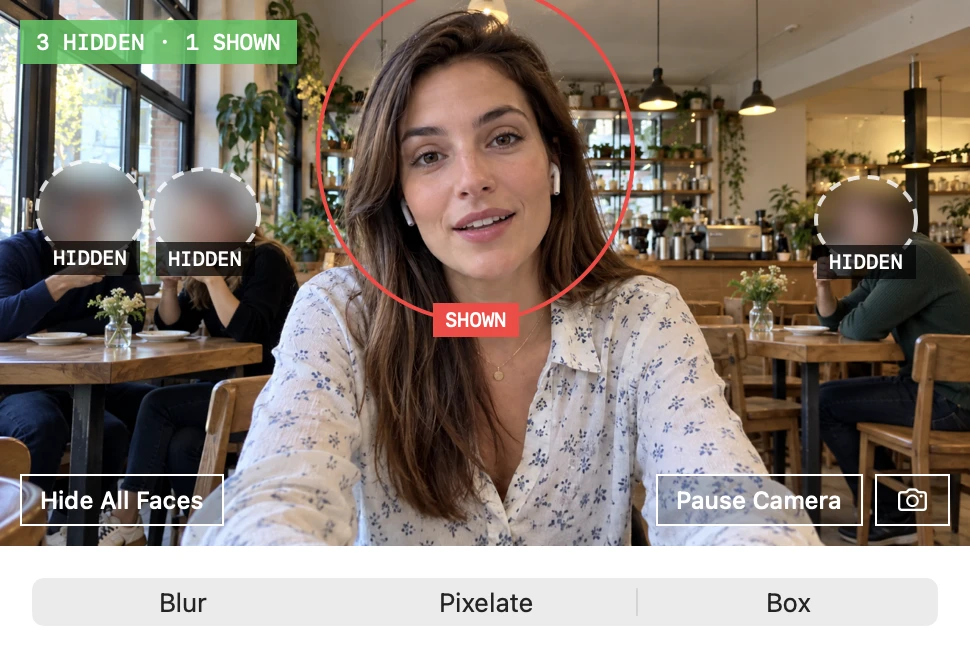
[REDACTED] Camera finds every face in your webcam video and hides it. To show your own face, click it in the app. Click it again to hide it.
A person who walks into the picture is always hidden, so you can take a call in a café, a shared office or at home without showing anyone who did not agree to be on camera.
Choose Blur, Pixelate or Box. The blur follows each face as it moves, and grows when a head turns, to cover ears and hair.
![The [REDACTED] Camera app with all four faces in the café blurred and marked Hidden.](/images/apps/redacted-camera-app-all-hidden-9ab1ed39.webp)
Works with every video app
The app adds a camera called [REDACTED] Camera to your Mac. Keep the app open and choose that camera in your video app.
-
Blur Face on Zoom Call
In Zoom, open Settings → Video and choose [REDACTED] Camera. In a meeting, you can also click the arrow next to Stop Video and choose it there.
-
Blur Face on Google Meet
In a Meet call, click More options → Settings → Video and choose [REDACTED] Camera. If it is not in the list, reload the page after you open the app.
-
Blur Face on Microsoft Teams
In Teams, open Settings → Devices and choose [REDACTED] Camera under Camera. Before you join a meeting, you can also pick it in the camera menu.
-
Blur Face on FaceTime
In a FaceTime call, open the Video menu in the menu bar and choose [REDACTED] Camera.
-
Blur Face on Webex
In a Webex meeting, click the arrow next to Stop Video and choose [REDACTED] Camera.
-
Blur Face on Slack Huddles
In Slack, open Settings → Audio & video and choose [REDACTED] Camera under Camera. Your next huddle with video uses it.
-
Blur Face on Any Other App
Any Mac app that lets you choose a camera can use [REDACTED] Camera, including OBS, Loom and Photo Booth.
-
Private by design
Face detection uses Apple's Vision framework on your Mac. The app has no network code and no account. Your video goes only to the apps that you choose.
-
Low CPU use
Click Pause Camera to turn off your webcam and the face detection. Video apps then show a message in place of your video.
Install
- Download the app, open the file and drag [REDACTED] Camera to Applications.
- Open [REDACTED] Camera and allow it to use your camera.
- Click Install. macOS asks you to allow the camera extension: click Open System Settings and turn on [REDACTED] Camera under Camera Extensions.
- In your video app, choose [REDACTED] Camera as your camera.
Uninstall
- Open [REDACTED] Camera, open Settings (⌘,) and click Uninstall. This removes the camera from your Mac.
- Quit the app and drag it from Applications to the Trash.